Getting started with the dashboard
Welcome to STRG. This guide walks with you through your first ten minutes, from signing up to reading and writing objects from your own tools. First, you'll sign in; then a card goes on the account, you create a bucket to hold your objects and an access key for your tools to sign their requests with, and finally an S3 tool you already know talks to your new bucket. All it takes is a browser, an email address or a GitHub account, and a payment card.
Each step leaves you with something you need for the next one:
| Step | What you end up with |
|---|---|
| 1. Signing in | A STRG account |
| 2. Adding a card | A verified card, which creating buckets and access keys requires |
| 3. Creating a bucket | A bucket in the region of your choice |
| 4. Creating an access key | An access key ID and secret access key |
| 5. Using the key | The AWS CLI, rclone or an SDK talking to your bucket |
1. Signing in or creating an account
Everything starts at https://app.strg.com. One screen serves both
signing up and signing in, so there is no separate registration to go through, and no password
to remember either.
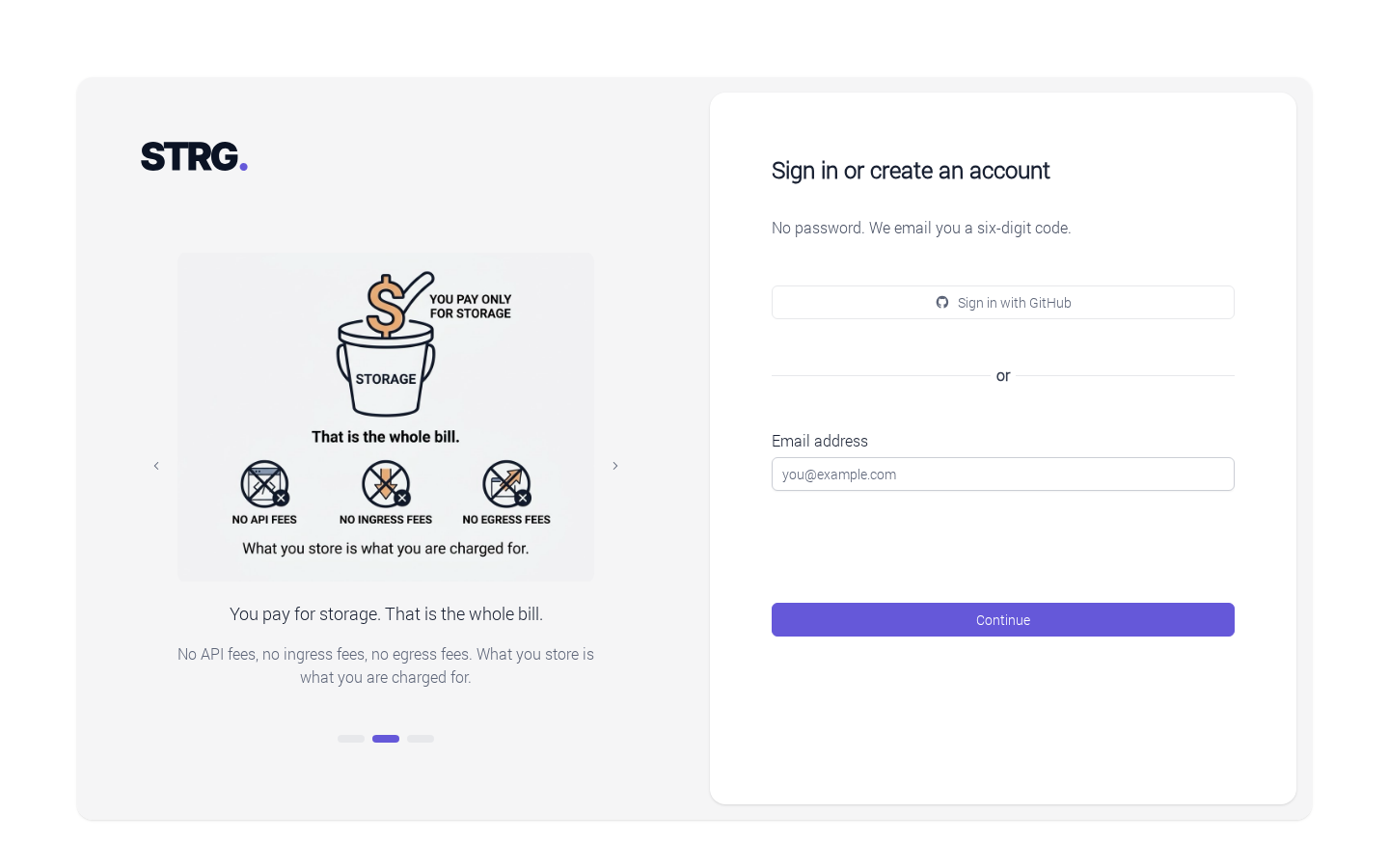
There are two ways in:
- By email: you enter your address and select Continue, and we email you a six-digit code. Entering it and selecting Sign in signs you in. An address without an account gets one with its first verified code.
- With GitHub: Sign in with GitHub takes you to GitHub to approve the request. A GitHub account without a STRG account gets one on its first sign-in, as long as it has a verified email address.
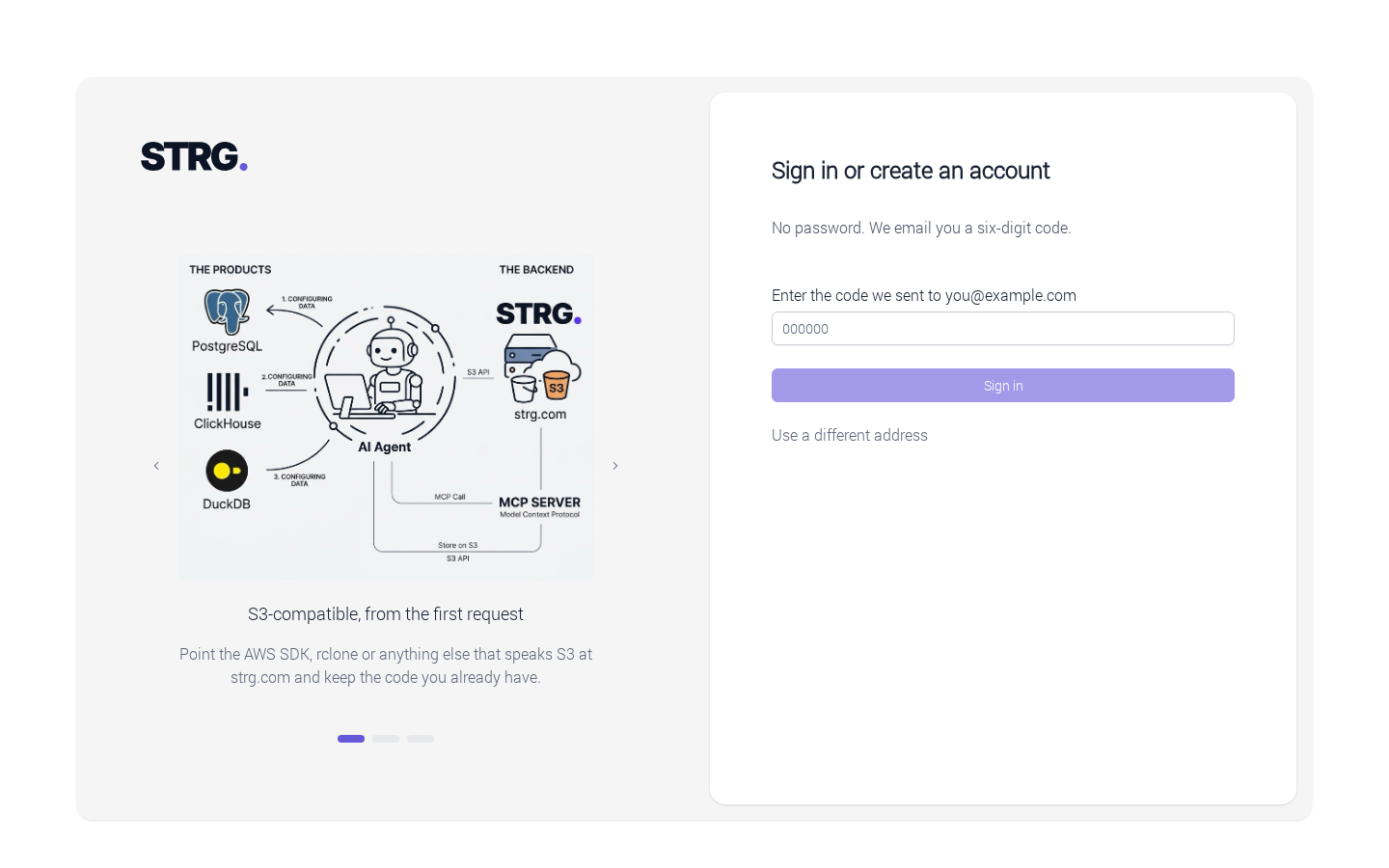
Each email address belongs to one STRG account, so Sign in with GitHub does not create a second account for an address that already has one. For an address that already has an account, the emailed code is the way in.
If you later turn on two-factor authentication, signing in also asks for the six-digit code from your authenticator app, whichever way you sign in. Account settings has the details.
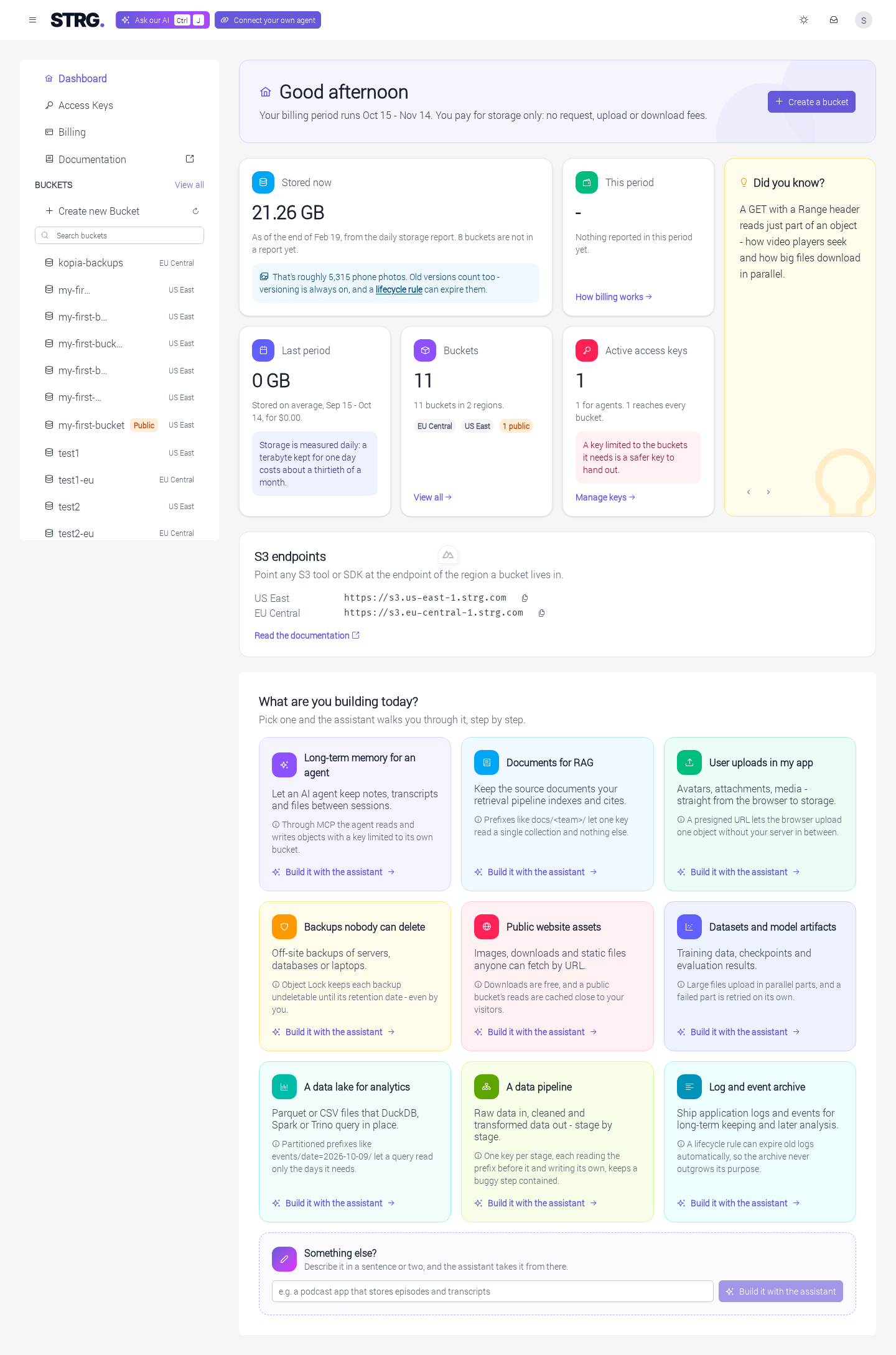
Once you are signed in, the sidebar holds Dashboard, Access Keys, Billing, a Documentation link that opens this documentation in a new tab, and your buckets. Create new Bucket sits at the top of the bucket list, with a refresh button beside it that lists your buckets again, and View all sits beside its Buckets heading. Each bucket shows its region, and a public one is marked Public. A name too long for the sidebar is shortened in the middle, and hovering over it shows it whole. Beside the STRG mark in the top bar, Ask our AI opens the assistant over the page you are on - and so does ⌘J on a Mac, or Ctrl+J elsewhere, which closes it again too. Next to it, Connect your own agent shows how to connect an AI coding agent to STRG, as Getting started with MCP describes. The menu behind your initial, at the right of the top bar, leads to Account settings and Sign out.
The Dashboard page gives you an overview at a glance: what you store now, the estimate for the current billing period, what you stored on average last period, your buckets and your active access keys, beside a Did you know? tip that changes every minute. An S3 endpoints card lists every region's endpoint with a button that copies it, and a link to this documentation. Below it, What are you building today? offers ideas - agent memory, backups, user uploads and more - and each one opens the Ask our AI Assistant in a new chat to walk you through it. Something else? takes your own description instead.
2. Adding a card
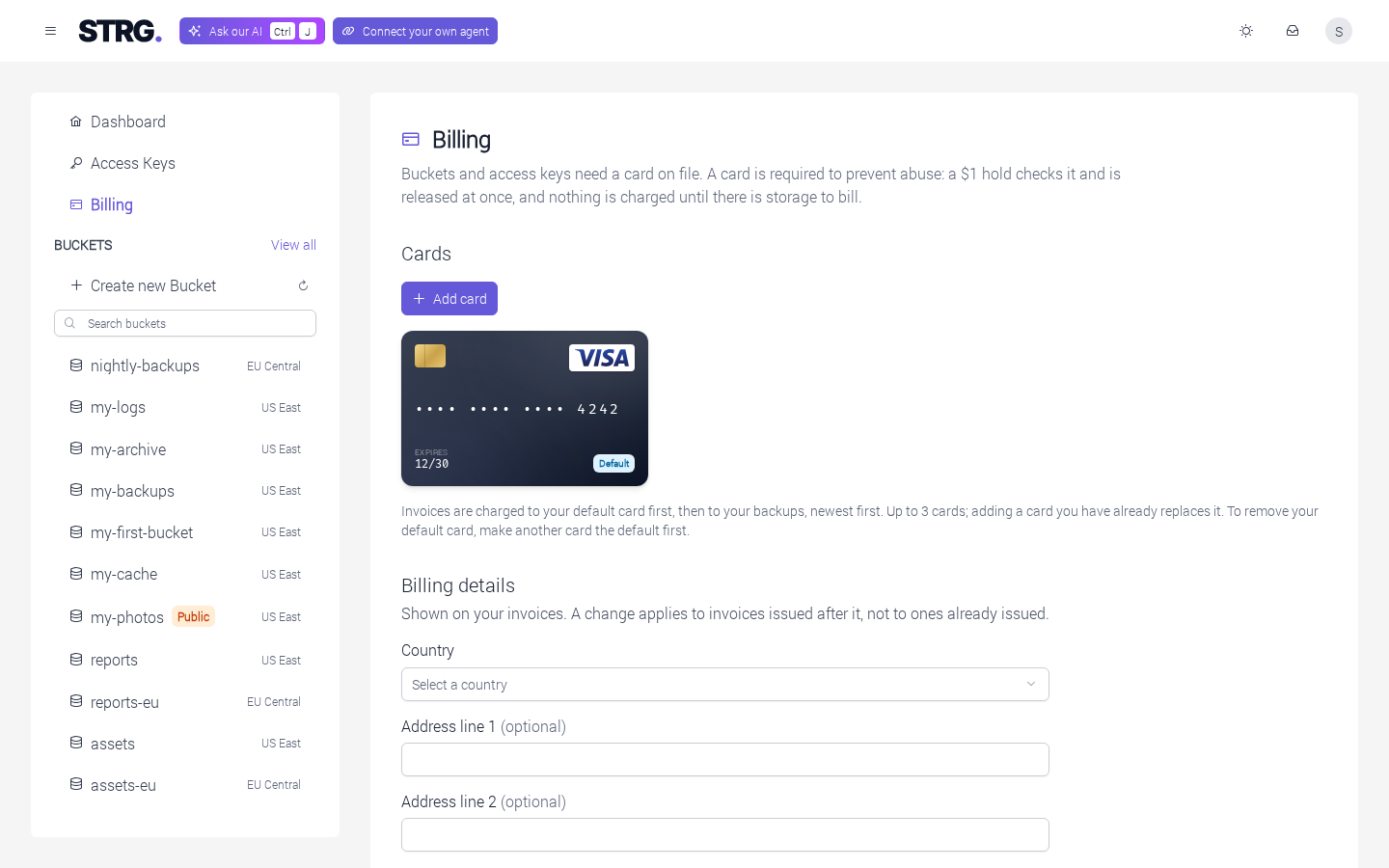
The next step is a card. Your account needs a verified card before its first bucket or access key, which is how we keep STRG free of abuse: a $1 hold checks the card and is released at once, and nothing is charged until there is storage to bill.
The card goes on Billing, in the sidebar, where Add card opens the Add a card dialog.
The dialog asks for the card number, expiration date and security code. On a new account, it also asks for your billing details, which appear on your invoices:
| Field | What it holds |
|---|---|
| Country | Required: the country of your billing address |
| Address line 1, Address line 2, City, Postal code, State / region | Optional |
| Company name | Optional |
| Your country's tax ID, such as European VAT number for an EU country | Optional. The field is named after the selected country's tax ID, and does not appear for a country without one |
Selecting Add card saves your billing details first and checks the card after them. If a tax ID cannot be accepted, the reason appears under the field before anything happens to the card, so the number can be corrected - or the field left empty - and Add card selected again. Once your account has billing details, the dialog asks for the card alone, and the card takes your saved billing address. Billing details, tax ID included, can be changed at any time in the Billing details form below the cards, with Save billing details.
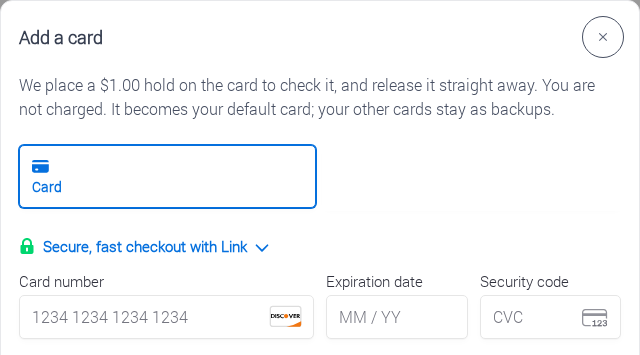
The card is checked within seconds and then appears under Cards. If your bank wants you to confirm the payment, that happens right in the page, while the dialog says Waiting for your bank's confirmation….
Until you have a verified card, the Create a bucket page and the Access Keys page show Add a card before creating a bucket. (or an access key) where their forms would be, with an Add a card button that opens the same Add a card dialog on that page. Once the card is verified, the form appears in its place. Billing covers cards, billing details and invoices.
3. Creating a bucket
A bucket is where your objects live, and it is the next thing to make. Create new Bucket in the sidebar opens the form, and so does Create a bucket at the top of the dashboard - which reads Create your first bucket while you have none.
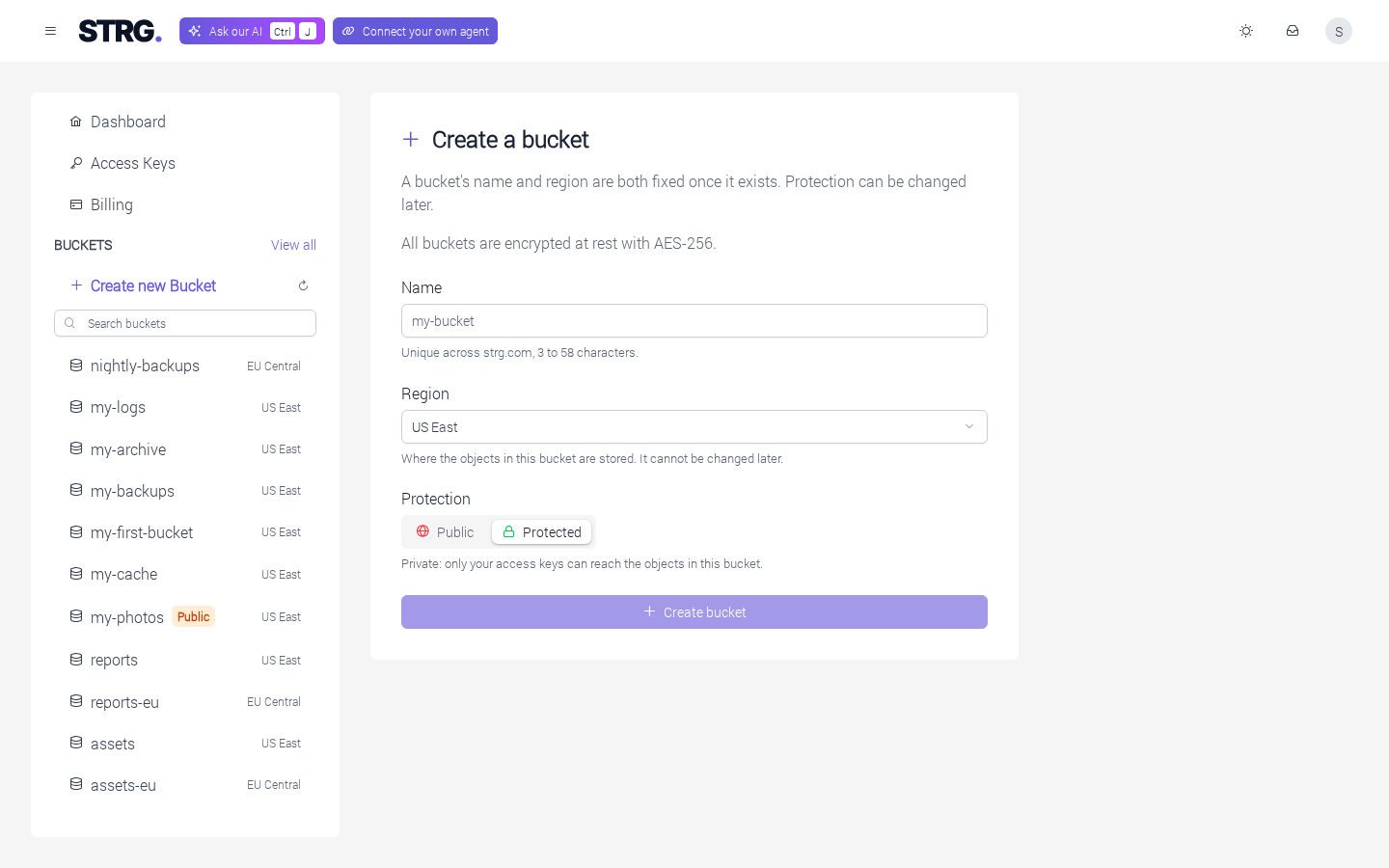
The form has three fields:
| Field | What it holds |
|---|---|
| Name | 3 to 58 characters: lowercase letters, digits, hyphens and dots, starting and ending with a letter or digit. No two adjacent dots, and not formatted like an IP address. Names are unique across all of STRG, exactly as on S3, so a name someone else already uses is not available |
| Region | Where the bucket's objects are stored: US East (us-east-1) or EU Central (eu-central-1) |
| Protection | Protected by default: the bucket is private and your access keys are the way to its objects. With Public, anyone with an object's URL can download it without credentials, at https://<bucket>.s3.<region>.strg.com/<key> - or https://s3.<region>.strg.com/<bucket>/<key> for a name containing a dot. Listing, uploading, changing and deleting still need an access key |
A bucket's name and region stay as they were set when it was created. Moving to another region means a new bucket there, with the objects copied across. Protection is different: it can be changed at any time on the bucket's Settings tab, under Bucket Protection.
Bucket names can be up to 58 characters long, a little shorter than S3's 63. A name without dots is the easy choice: a bucket whose name contains a dot is reached with path-style requests, and the form reminds you of that as soon as you type one. Step 5 shows the setting for each tool.
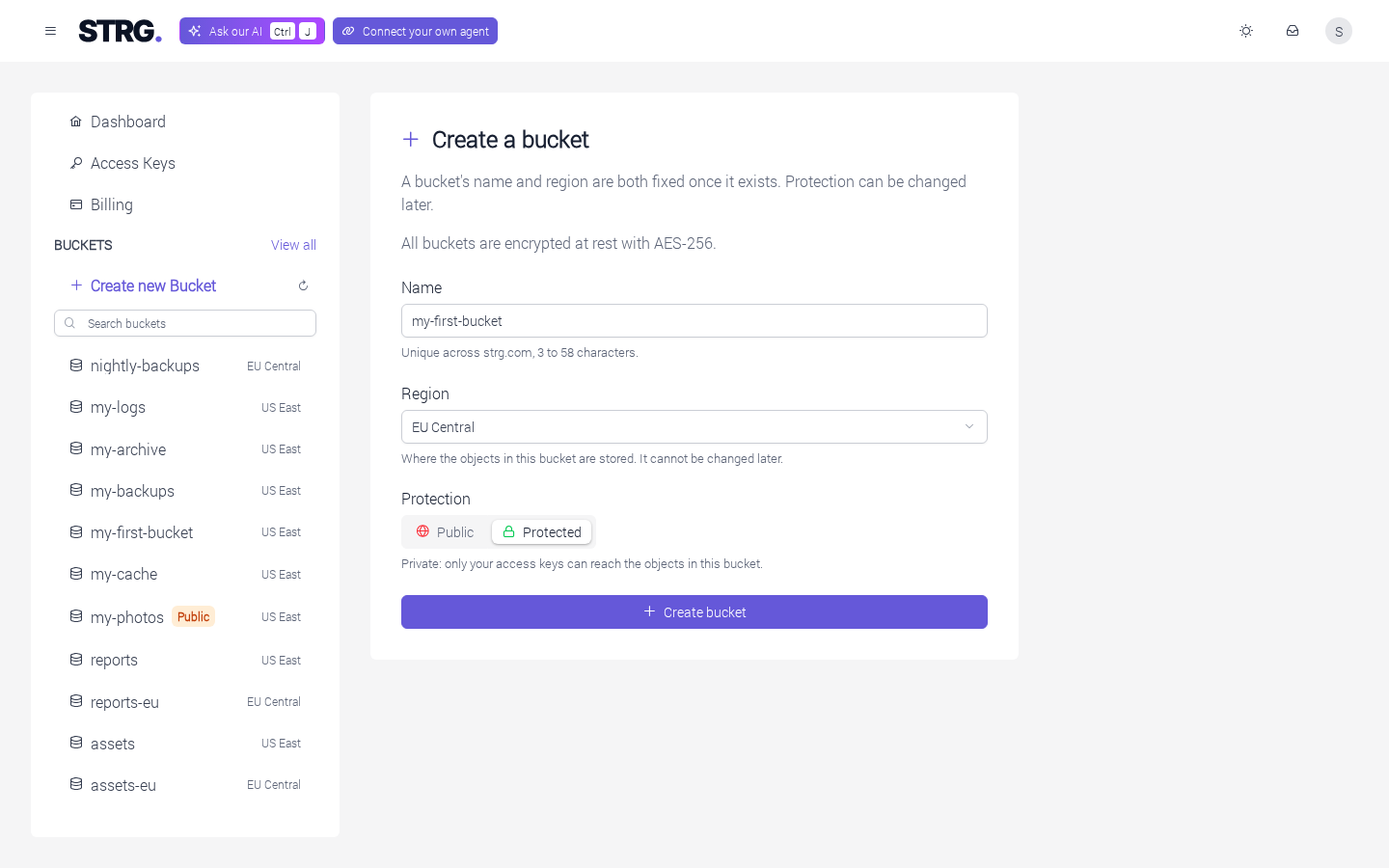
Create bucket creates it. Your first bucket in a region takes a little longer while storage is set up there, and the page says so below the button. When it is done, the page confirms that the bucket is ready and the bucket appears in the sidebar. If it takes longer still, the page says my-first-bucket is still being set up and will appear in your buckets shortly. That is not an error - the bucket is still being created, and selecting Create bucket again with the same name and region picks up that same creation rather than starting another.
View all, beside the sidebar's Buckets heading, opens a table of every bucket you have, in every region. It can be searched by name and sorted by any column:
| Column | Shows |
|---|---|
| Name | The bucket's name, which opens its page |
| Created | The date the bucket was created |
| Region | The bucket's region |
| Protection | Protected or Public |
| Size | The data stored, from the daily storage report, and how long ago it was reported - so it trails what is stored now. A new bucket shows Not reported yet until its first report |
| Object Lock | Off or On, and the default retention if one is set |
A value that is not known yet shows as -. The page also has a Create Bucket button, and a
refresh button that reloads the list and the sizes.
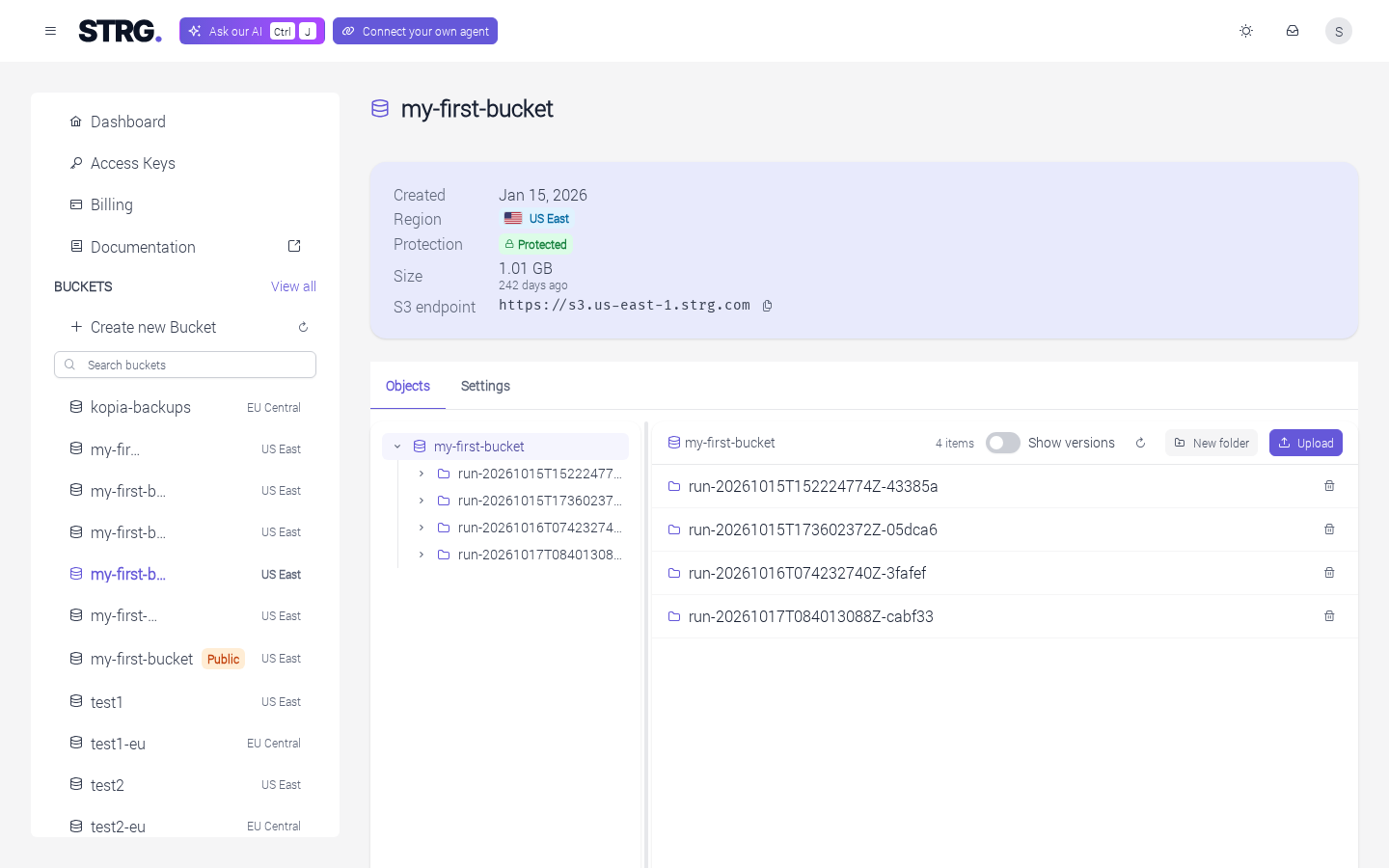
Selecting the bucket in the sidebar opens its page. A card at the top shows when the bucket was
created, its region, its protection, its size and the S3 endpoint of its region - such as
https://s3.eu-central-1.strg.com - with a button that copies it. A public bucket's card adds an
HTTPS endpoint, the address its objects can be fetched from in a browser, such as
https://my-first-bucket.s3.eu-central-1.strg.com, or the path-style address for a bucket whose
name contains a dot, such as https://s3.eu-central-1.strg.com/my.bucket. Below it, the object browser is on the Objects
tab, and Bucket Protection, lifecycle rules, CORS rules, Object Lock, Delete bucket and the
access keys that can reach the bucket are on the Settings tab. In a wide enough window, the
card and the settings sit in a column beside the object browser instead. Every bucket is
encrypted at rest with AES-256.
In a public bucket, selecting an object offers Copy public URL, which copies the address anyone can download the object from without credentials. It always serves the object's latest version.
Deleting a bucket cannot be undone. A bucket can be deleted once it is empty - no object versions and no delete markers left - and the deletion is confirmed by typing its name. Access keys limited to the bucket stop reaching it, even if a bucket with the same name is created again, and once it is deleted anyone can take the name.
4. Creating an access key
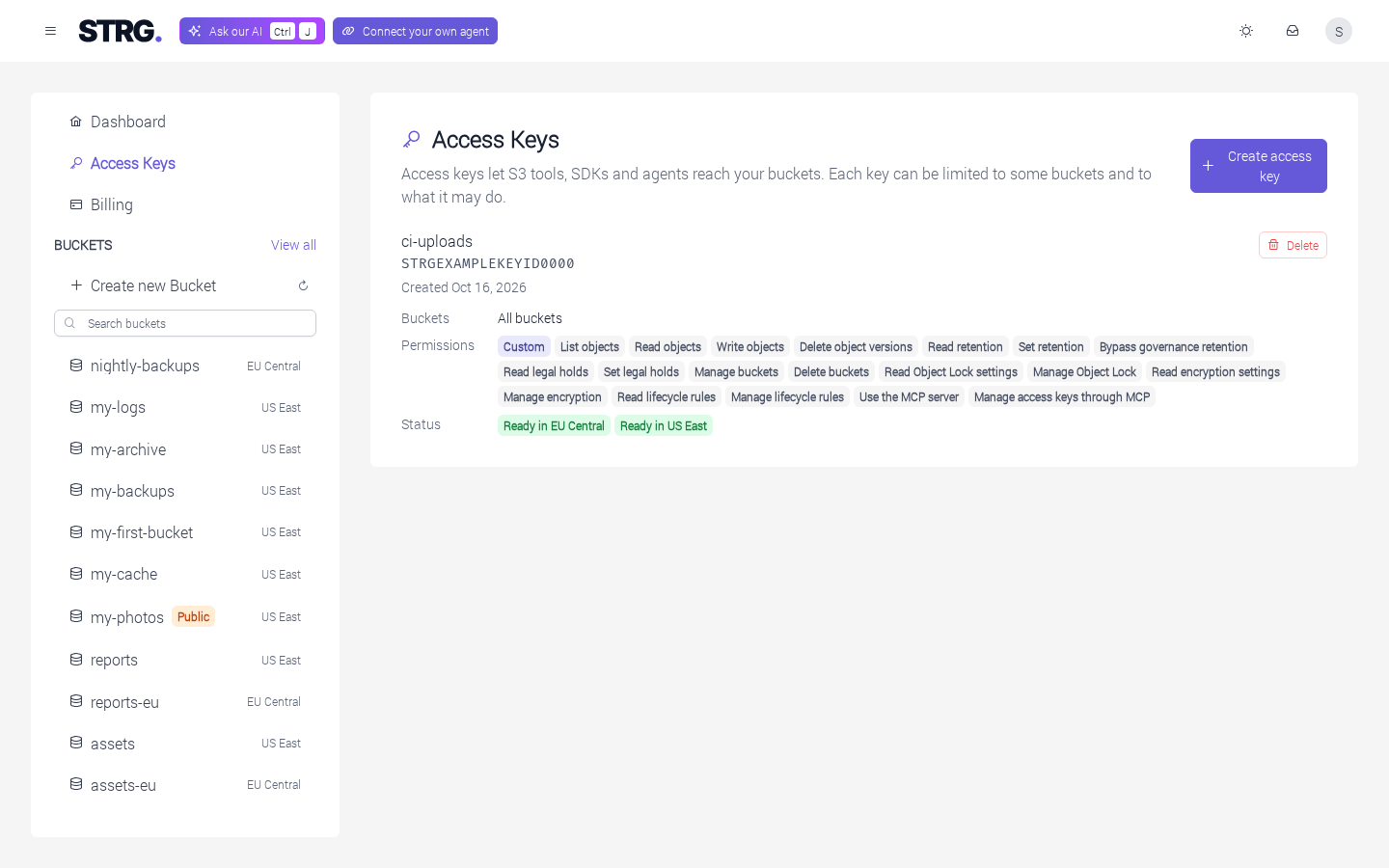
An access key is what an S3 tool signs its requests with: an ID that says which key it is, and a secret that proves the request came from you. Keys live on the Access Keys page in the sidebar, where Create access key opens the form.
The form decides what the key can reach and what it may do:
| Field | What it holds |
|---|---|
| Name | For you: what uses this key, at most 64 characters |
| Buckets | All buckets, or Only some buckets with the ones this key may reach ticked. A key reaches the buckets that exist when it is created, so a bucket created later needs a new key |
| Only objects whose name starts with… | Optional. Limits the key to object names starting with this prefix, such as reports/ |
| Template | Fills in the permissions for you: Full Access (selected by default), Write Access, Read-only Access or Custom. For this guide, Write Access is enough to list, download and upload objects, and Read-only Access leaves out uploading. Every template except Custom includes Use the MCP server, which lets the key sign in to the MCP server. Full Access also adds Manage access keys through MCP and Manage access keys through the API, the second for the REST API |
| Permissions | Ticked by the template. List buckets and Read bucket settings are always included. Ticking or unticking any permission switches the template to Custom |
Each permission has a (?) button explaining what it allows. A permission that needs another one to be useful stays disabled until that one is ticked. Access keys describes every permission.
A key with the Manage Object Lock permission - which the Full Access template includes - can turn on Object Lock for a bucket, and that can never be undone. The key is created straight away; the bucket's own Object Lock settings ask for a confirmation before anything is switched on. Object Lock explains what that means.
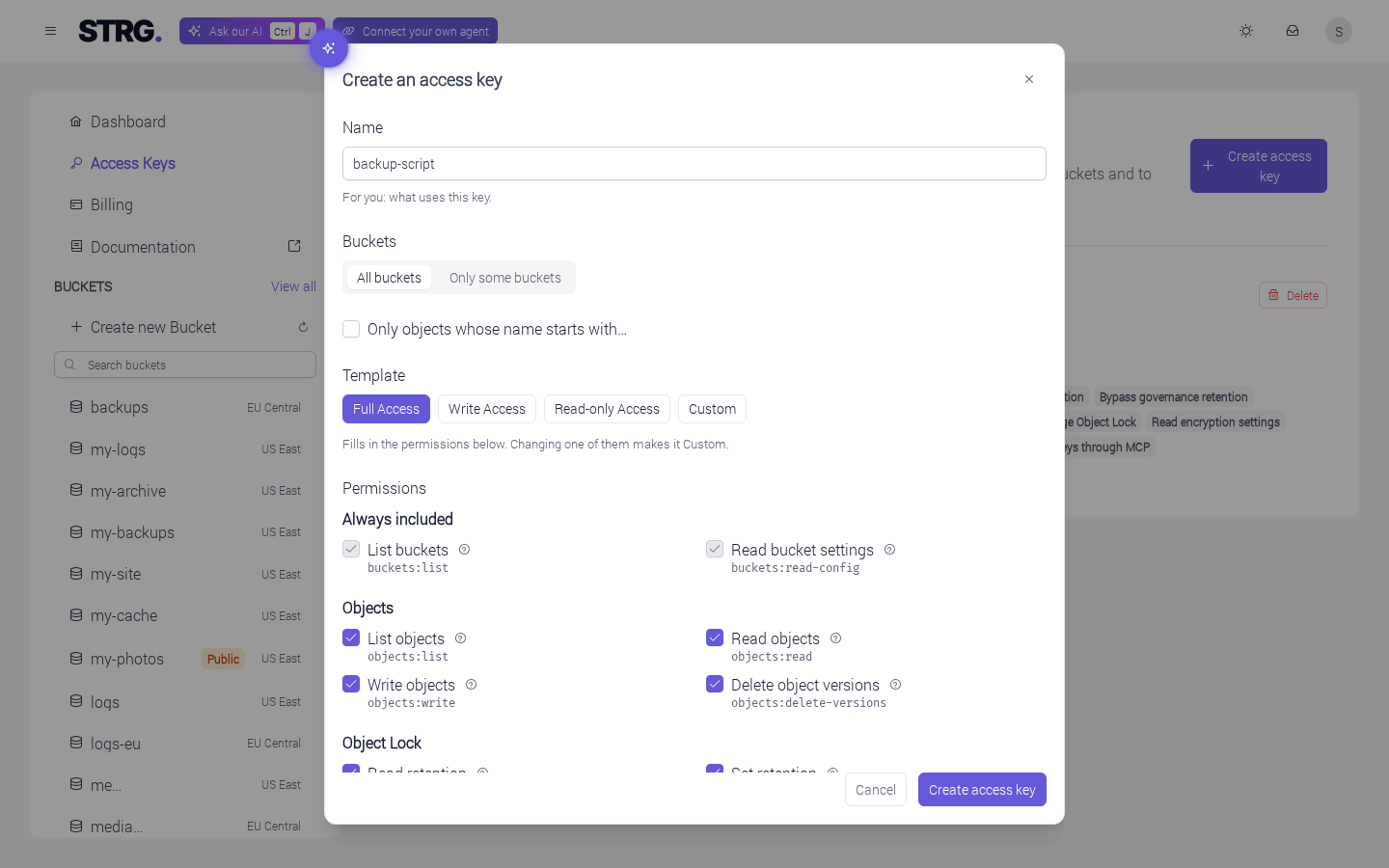
Create access key creates it, and the dialog then shows the Access key ID and the Secret access key, each with a copy button.
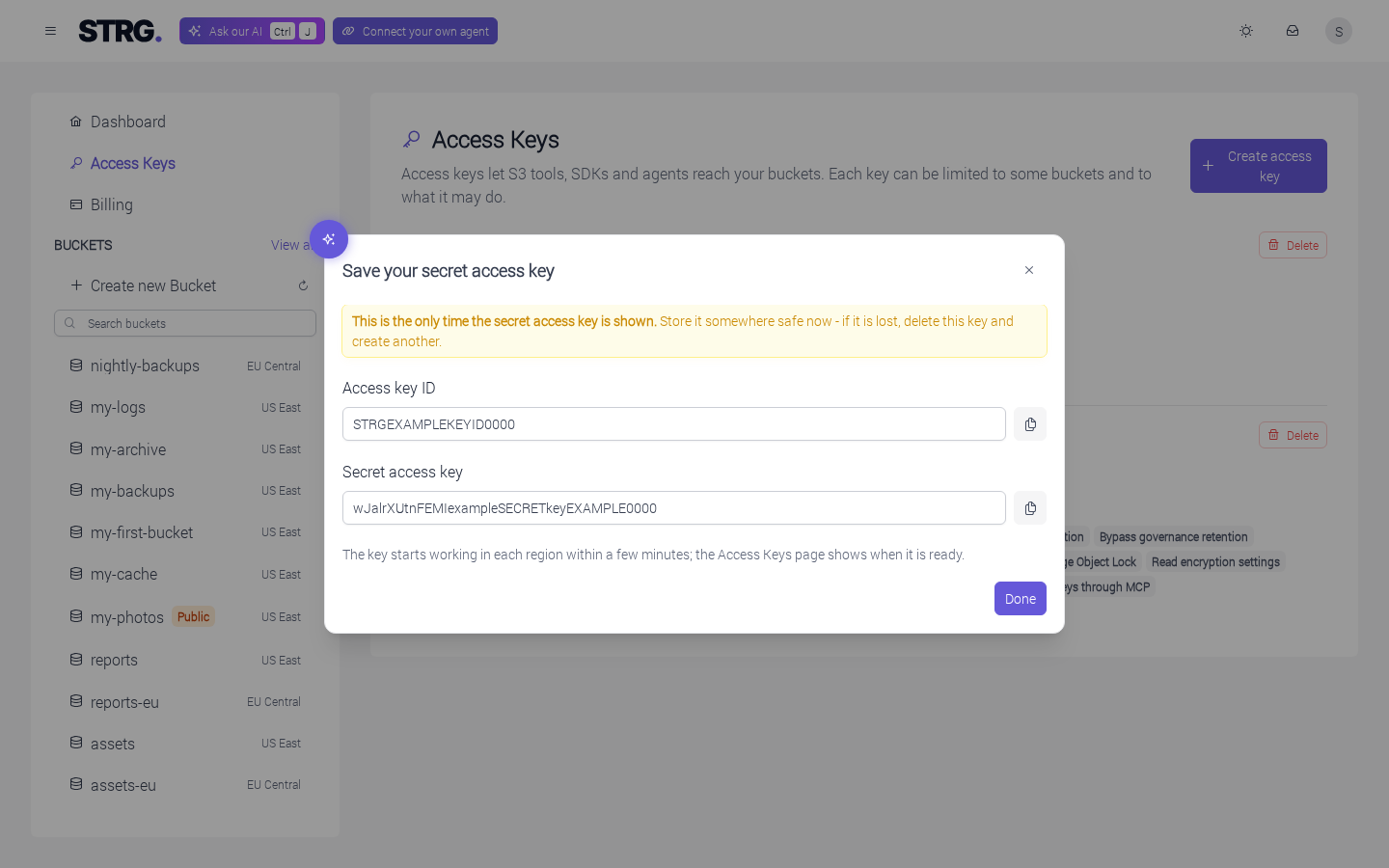
The secret access key is shown only once. This is the moment to put it in a password manager or your tool's configuration, before selecting Done: nobody can show it again afterwards. If it ever goes missing, a new key takes only a moment to create, and deleting the old one makes sure nobody else can use it.
Keys stay exactly as they were created, which makes them easy to reason about: a key that worked yesterday does the same today. Different buckets or permissions simply means a new key, and the old one can then be deleted. Deleting a key takes effect everywhere and cannot be undone.
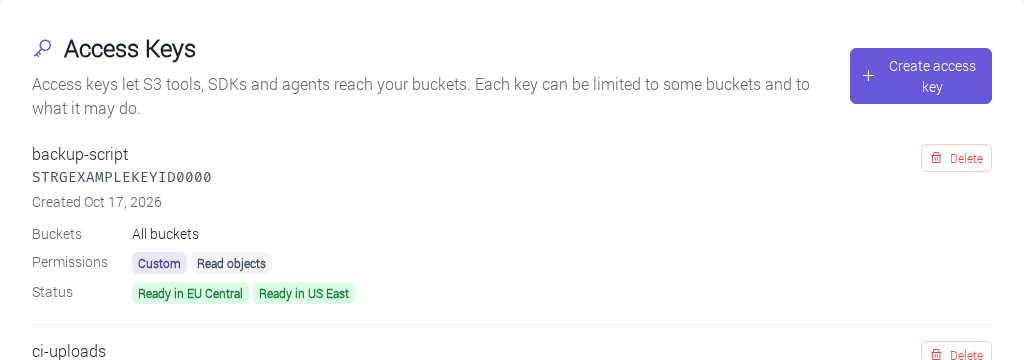
The key starts working in each region within a few minutes. Its Status row shows Setting up in … until then and Ready in … once it works there, and the page updates by itself. A key starts working in a region once you have a bucket there - or once it has created the first one there through the API (Step 5).
5. Using the key from your tools
Now for the part where your own tools come in. STRG speaks the S3 API, so any S3 tool works once it knows the endpoint of the region your bucket is in, and that region's name:
| Region | Endpoint |
|---|---|
us-east-1 (US East) | https://s3.us-east-1.strg.com |
eu-central-1 (EU Central) | https://s3.eu-central-1.strg.com |
Buckets are also reachable virtual-hosted style, at https://<bucket>.s3.<region>.strg.com.
The examples below use eu-central-1 and my-first-bucket, which your own region and bucket
replace.
Each endpoint serves the buckets in its own region. A request for a bucket in another region
answers NoSuchBucket, even though the dashboard shows the bucket. S3 would redirect to the
right region; STRG answers straight away, so the AWS SDKs do not retry. If your account has no bucket in the endpoint's region at all,
a request for a bucket answers NoSuchBucket as well and
ListBuckets an empty list, while
CreateBucket creates your first bucket there. That sets storage up
in the region first, so it takes longer and may answer 503 SlowDown, which the SDKs retry. A
key still Setting up in … a region where you do have a bucket answers InvalidAccessKeyId to
every request but CreateBucket until it is Ready in … there
(Step 4). The region shown on the bucket's page settles which
endpoint to use, and the S3 endpoint there, like the dashboard's S3 endpoints card, is that
region's endpoint from the table above - the tool adds the bucket name itself.
The secret stays out of your code: every example reads the key from the environment or from the tool's own credential store.
export AWS_ACCESS_KEY_ID="your access key ID"
export AWS_SECRET_ACCESS_KEY="your secret access key"
- AWS CLI
- rclone
- Python (boto3)
- JavaScript (AWS SDK v3)
A profile of its own keeps the key apart from any other credentials. aws configure asks for the
access key ID and the secret access key; eu-central-1 goes in as the default region, and the
output format can stay as it is.
aws configure --profile strg
Every command then carries the endpoint:
aws s3 ls --profile strg --endpoint-url https://s3.eu-central-1.strg.com
aws s3 cp ./hello.txt s3://my-first-bucket/hello.txt --profile strg --endpoint-url https://s3.eu-central-1.strg.com
aws s3 ls s3://my-first-bucket/ --profile strg --endpoint-url https://s3.eu-central-1.strg.com
aws s3 cp s3://my-first-bucket/hello.txt ./hello-copy.txt --profile strg --endpoint-url https://s3.eu-central-1.strg.com
For a bucket whose name contains a dot, the profile switches to path-style requests with:
aws configure set s3.addressing_style path --profile strg
rclone reaches STRG through a remote in its configuration file (rclone config file prints
its location). This one reads the key from AWS_ACCESS_KEY_ID and AWS_SECRET_ACCESS_KEY:
[strg]
type = s3
provider = Other
env_auth = true
region = eu-central-1
endpoint = https://s3.eu-central-1.strg.com
force_path_style = true
no_check_bucket = true
no_check_bucket = true stops rclone from trying to create the bucket before it uploads, since
the bucket already exists in the dashboard.
rclone lsd strg:
rclone copy ./hello.txt strg:my-first-bucket/
rclone ls strg:my-first-bucket
import boto3

s3 = boto3.client(
    "s3",
    endpoint_url="https://s3.eu-central-1.strg.com",
    region_name="eu-central-1",
)

s3.put_object(Bucket="my-first-bucket", Key="hello.txt", Body=b"Hello, STRG!")

for obj in s3.list_objects_v2(Bucket="my-first-bucket").get("Contents", []):
    print(obj["Key"], obj["Size"])

print(s3.get_object(Bucket="my-first-bucket", Key="hello.txt")["Body"].read().decode())
For a bucket whose name contains a dot, the client takes
config=botocore.config.Config(s3={"addressing_style": "path"}) as well (with
import botocore.config).
import {
  S3Client,
  PutObjectCommand,
  ListObjectsV2Command,
  GetObjectCommand,
} from "@aws-sdk/client-s3";

const s3 = new S3Client({
  endpoint: "https://s3.eu-central-1.strg.com",
  region: "eu-central-1",
});

await s3.send(
  new PutObjectCommand({ Bucket: "my-first-bucket", Key: "hello.txt", Body: "Hello, STRG!" }),
);

const listing = await s3.send(new ListObjectsV2Command({ Bucket: "my-first-bucket" }));
for (const object of listing.Contents ?? []) console.log(object.Key, object.Size);

const object = await s3.send(new GetObjectCommand({ Bucket: "my-first-bucket", Key: "hello.txt" }));
console.log(await object.Body.transformToString());
It runs with node example.mjs, once npm install @aws-sdk/client-s3 has added the SDK. For a
bucket whose name contains a dot, the client takes forcePathStyle: true as well.
A single PutObject takes an object of up to 5 GiB. The AWS CLI, rclone and the SDKs' upload
helpers switch to multipart uploads for large files by themselves; with a plain PutObject,
anything larger goes up in parts. The S3 API lists every supported
operation and how each differs from S3.
Next steps
That's it - your tools and your bucket are talking. Where to go next depends on what you are building:
| You want to | Page |
|---|---|
| Choose exactly what a key may do, or limit it to some buckets or a prefix | Access keys |
| Let a web application in the browser use a bucket directly | CORS rules |
| Expire old objects and versions automatically | Lifecycle policies |
| Make objects impossible to delete for a period | Object Lock |
| Look up an S3 operation | The S3 API, e.g. PutObject, GetObject, ListObjectsV2 |
| Create and delete access keys from your own code | The REST API |
| Connect an AI agent instead | Getting started with MCP |